
Feedback
Feedback is userGist's one-question prompt channel. Use it for NPS, CSAT, star ratings, single-question multiple-choice, and short open-text — the moments where a five-step survey would be too much friction.
- 1 · BuildContent & questions
- 2 · DesignTheme & layout
- 3 · TargetAudience · trigger · schedule · caps
- 4 · AnalyzePerformance & responses
Stage 1 — Build
Each prompt has one or more questions; most teams ship a single question.
Question types
The composer offers 4 types:
| Type | Returns | Notes |
|---|---|---|
rating | 1–5 or 1–10 | Scale picker + optional Low label and High label captions on the ends. |
nps | 0–10 | Optional Follow-up prompt captured as free text after the score. |
multiple_choice | option ID(s) | Add options 1-by-1. Toggle Multi-select to switch from radio to checkbox. |
short_text | string | Placeholder + Max length (10–1000, default 280). |
Per-question settings
For every question:
- Title — the actual question your user reads.
- Subtitle (optional) — secondary line beneath the title.
- Type-specific fields from the table above.
That's the complete editor surface. There's no per-question "Required" toggle, no "Other" option on multiple-choice, and no branching UI today — prompts are meant to be quick and structurally simple. (Branching lives on Surveys.)
Stage 2 — Design
Pick a theme from the gallery, then optionally override individual tokens.
Theme tokens (custom palette)
| Token | Type |
|---|---|
primary | hex |
background | hex |
text | hex |
subtext | hex |
border | hex |
accent | hex |
button | hex |
borderRadius | number (px) |
fontFamily | string |
Same palette is used for surveys and in-app messages — change it once, it applies to all three.
Stage 3 — Target
Choose Audience, then Platforms, then Trigger. The platform section shows the app's configured iOS, Android and Web options. React Native, Expo and Flutter map to iOS and Android; select both for both app versions. Web covers browsers and appears only when enabled in app settings. See platform targeting.
Three concerns: who, when, and how often.
Audience
Use the Add criteria button to add audience conditions. The 8 condition kinds and operators are documented in Segments — same builder, same DSL.
Top-of-card Match selector chooses how rows compose:
| Setting | Meaning |
|---|---|
| All of these criteria | AND — every row must match. |
| Any of these criteria | OR — any row matches. |
Live audience-size badge updates as you edit.
Trigger — when does it fire?
Prompts use the shared composer trigger builder. There are 3 kinds:
| Kind | Dashboard label | Hint |
|---|---|---|
app_open | On app open | "Fire when the user opens the app." |
event | When a user performs an event | "Fire when the SDK records a specific event (with optional property filters)." |
app_version_changed | When the user updates the app | "Fires on the first cold-start after the app version changes — perfect for "What's new"." |
The audience_join trigger from the data model is intentionally hidden in the prompt / survey / in-app composers; it's only exposed for push campaigns. The other three above are everything you'll see here.
Event trigger extras
When you pick event, three sub-controls appear:
- Event name — choose from existing events (autocomplete) or type a new one.
- Property filters — optional list of
property + operator + valuerows that constrain which events count (e.g. onlycheckout_completedwhereamountUsd >= 49). - Trigger occurrence — a dropdown:
| Value | UI label | Meaning |
|---|---|---|
every | Every time | Fire on every qualifying occurrence. |
first_only | First occurrence | Fire only on the first qualifying occurrence per user. |
after_nth | After Nth occurrence | Fire only on the Nth qualifying occurrence. A numeric input appears for N. |
Occurrence counters are stored per campaign and user and persist across app reloads, independently of Once only. Earlier events from before activation or while Every time was selected are not backfilled. Counted history remains after rule edits, pauses, and reactivation. See occurrence counting details.
Shared trigger options
For all three trigger kinds:
- Delay — in minutes (the UI shows minutes; under the hood it's
delaySeconds). Default 0. - Once only — checkbox. Fire just one time per user, ever.
- Active window — toggle that reveals Start and End date/time inputs. Restricts firing to a date range.
Frequency caps
Two knobs:
| UI label | Field | Range | What it does |
|---|---|---|---|
| Per-feedback cooldown (days) | perPromptDays | 0+ | Don't show this prompt to the same user within N days. |
| Global per-user cooldown (days) | perUserDays | 0+ | Any userGist prompt will not show within this window. |
For NPS: perPromptDays = 90 (long cadence) and perUserDays = 14 (quiet two-week window after firing). For one-off CSAT: perPromptDays = 30.
Stage 4 — Analyze
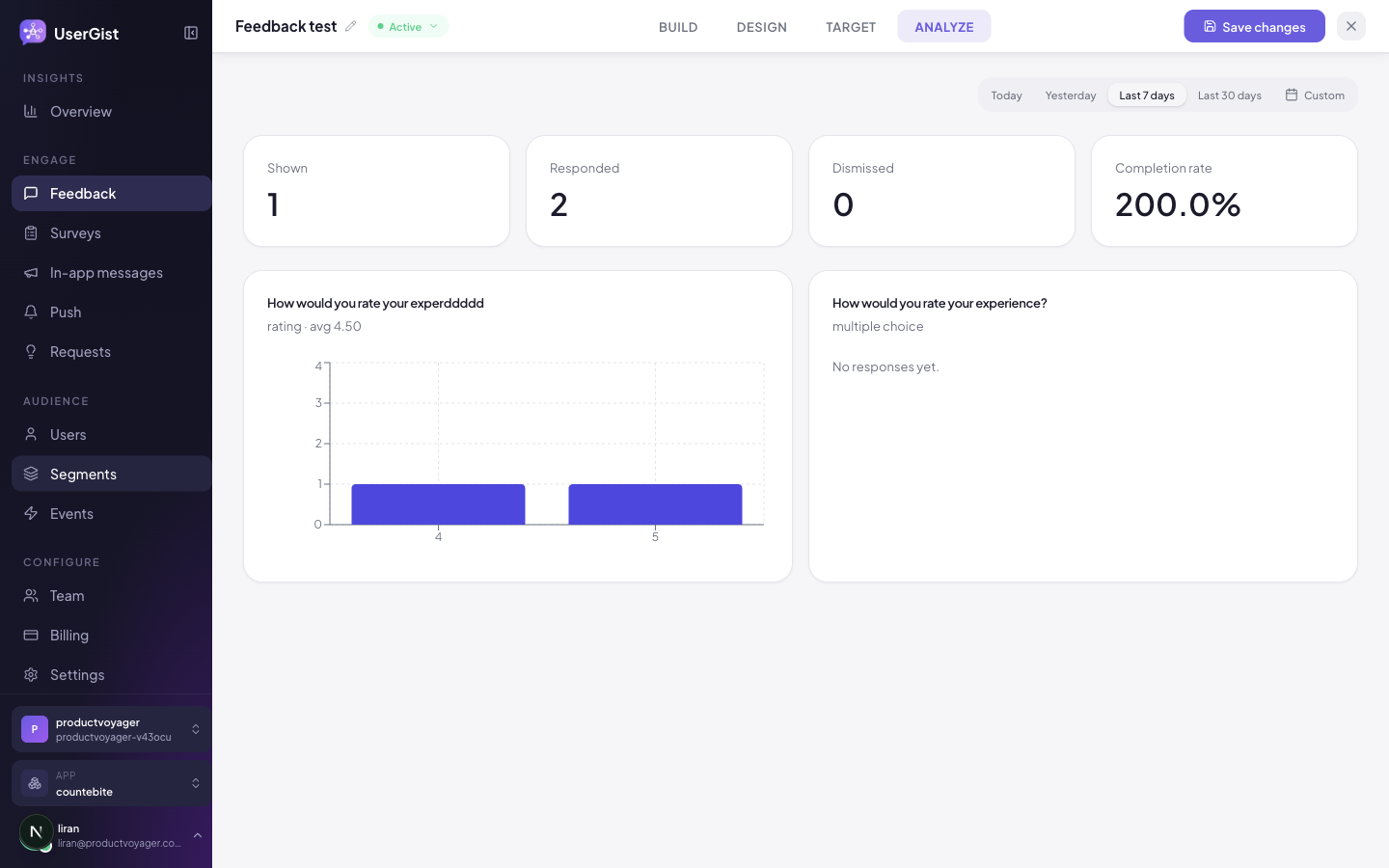
After publish, the editor flips to a read-only Analyze view:
- Response rate —
responses / impressions. - Score distribution — bar / histogram for
nps/rating. - Time series of daily responses (24h / 7d / 30d).
- Raw responses — every submission with user, score, optional comment, and originating event.
Status lifecycle
| Status | Meaning |
|---|---|
draft | Not shipping yet. Edits don't propagate to SDKs. |
active | Live. SDKs pick up the trigger on the next sync (≤ 5 min). |
paused | Live but temporarily not delivered. |
archived | Not delivered; retained until an operator permanently deletes it. |
SDK side
// Triggered prompts: just track the event
UserGist.track('checkout_completed', { amountUsd: 49 })

// Imperative open (e.g. from a “Give feedback” button)
const surveys = await UserGist.getAvailableSurveys()
if (surveys[0]) UserGist.openSurvey(surveys[0].id)

// React to a response
UserGist.onResponse((info) => {
  // info.surveyId, info.payload, info.userId, info.timestamp
})
API
GET /v1/apps/:appId/prompts— listPOST /v1/apps/:appId/prompts— createPATCH /v1/apps/:appId/prompts/:promptId— updateDELETE /v1/apps/:appId/prompts/:promptId— permanently delete
Canonical schemas: apps/api/src/schemas/prompts.ts.
Personalized feedback
Use Insert field in supported prompt text to ask about the user's saved profile, latest matching activity or triggering event. Preview as user shows resolved text and missing fields without recording a response. See Personalize messages for setup and fallbacks.
The immediate-delivery API and SDK release returns authorized server-dependent feedback with event ingestion, avoiding the normal batch and next-poll waits. Eligible ordinary native prompts still use cached matching. Consent, audience, frequency and configured delay rules continue to apply.
What's next
- Features → Surveys — multi-step version
- Features → Segments — every audience condition
- Guides → Run an NPS survey
Feedback on websites
Enable Web and allow your website origins in SDK setup, then include Web in the campaign's Target step. After explicit SDK activation, feedback consent enables display; analytics consent is also needed for tracked-event triggers. Configure browser layout under Design → Web presentation, below the theme controls. Use Web desktop or Web mobile to preview; Enlarge preview is available below desktop only.
Follow the Web SDK guide for automatic event-triggered delivery and openFeedback() from your own buttons. Existing campaigns retain native targeting until you add Web.