
Portal setup & branding
Set up your company's address, choose the apps customers can visit, and preview the portal before publishing. Owners and admins manage these settings; editors manage the content inside each app.
Choose your address
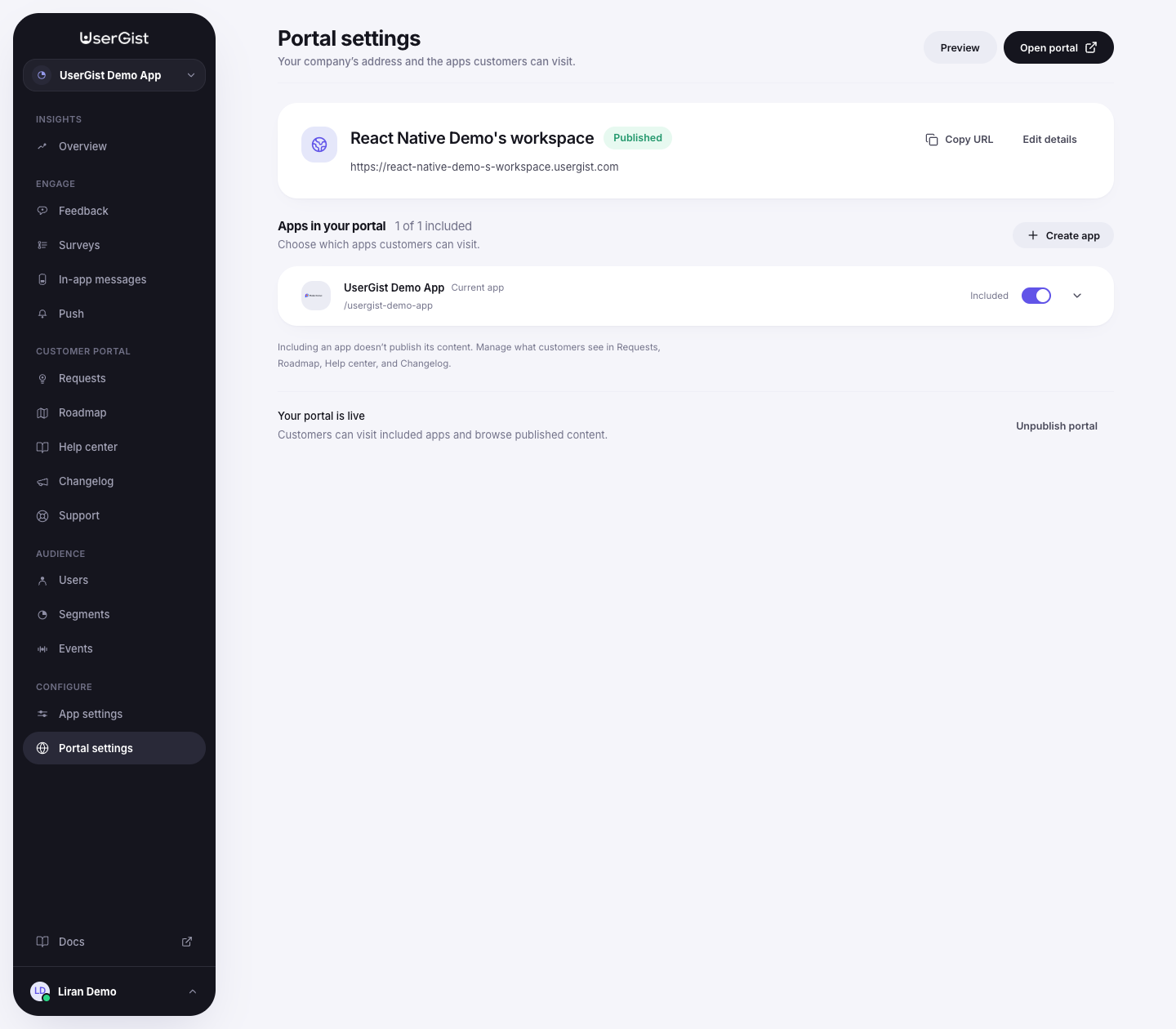
Open Configure → Portal settings in the dashboard.
- 1
Name your company portal
Enter the company display name and choose an available company address, such as
acmeforacme.usergist.com. - 2
Include an app
Under Apps in your portal, enable each product customers should be able to visit. Choose its app path, such as
mobile. You can also create an app here and connect its SDK later. - 3
Save changes
Save the company details and app selections before previewing or publishing. An included app keeps its own requests, roadmap, articles, and release notes.
Addresses use 3–48 lowercase letters, numbers, or interior hyphens. Reserved names such as app, api, and docs cannot be used. Company addresses must be available; app paths must be unique within the portal.
The company address and an app's path become fixed after their first publication. Unpublishing does not unlock them. The company display name and appearance can still change.
Match your app's brand
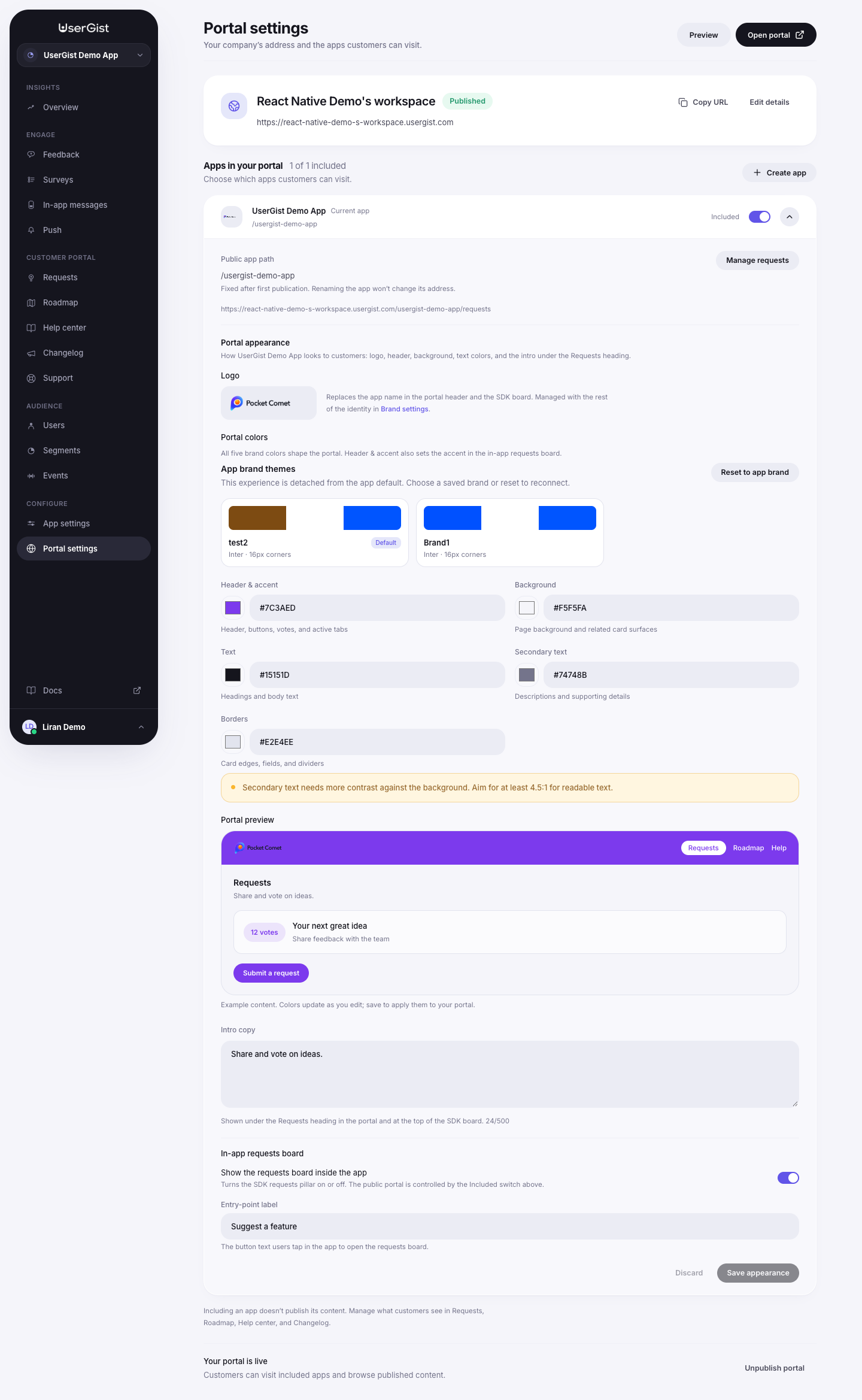
Expand an app in Portal settings to open its appearance controls. The portal can follow the app's default request theme or use a custom palette. Customize the primary, background, text, secondary text, and border colors; use the preview to check readability.
The app logo is managed with the app's brand identity. Intro copy appears below the Requests heading and at the top of the SDK request board. The optional SDK entry-point label is also configurable here. Saving appearance changes for a live app updates the portal customers see.
Your organisation's privacy notice
In each app's Portal appearance, fill in Organisation's legal name, Privacy policy URL, and Privacy contact email, then save. Provide all three fields together; the policy must use HTTPS and the email must be valid.
These details are shown before a visitor signs in or submits feedback/support, and in the portal footer. Explain public request/comment visibility, private support, purposes, recipients, retention, and access/correction rights in your own notice. The UserGist platform notice does not replace your organisation's notice or establish your lawful basis. Configure this before collecting portal information. Existing portals remain available while you add their details.
Preview
Save your changes and choose Preview. Select the app and switch between Requests, Roadmap, Help center, and Changelog when portal content is enabled. This preview is private to your team. Articles and roadmap items also have their own editor previews for draft content.
An empty request board can be published. You can prepare help articles, release notes, and team roadmap items as drafts first, then publish them after the portal is ready.
Publish the portal
Choose Publish portal and review the confirmation. Publication needs a saved company address, at least one included app, and ready public hosting.
Open the live portal using Open portal or copy the URL. Then publish the individual content customers should see:
- In Requests, select requests and choose Publish on portal.
- In Roadmap, open a team item and choose Publish item.
- In Help center or Changelog, open a document and choose Publish.
If content publication is unavailable, check that the portal is published and the current app is included. If the dashboard says public hosting or portal content is unavailable in this environment, that deployment prerequisite must be resolved before publication.
Take an app or portal offline
Removing an app from the portal makes its public space unavailable while retaining its records. A live portal must retain at least one included app; unpublish the portal first if you want to remove the last one.
Unpublish portal makes public pages and participation unavailable across the company portal. Content, requests, and votes are retained. Republishing restores access to content that still meets its own publication rules.