
Roadmap
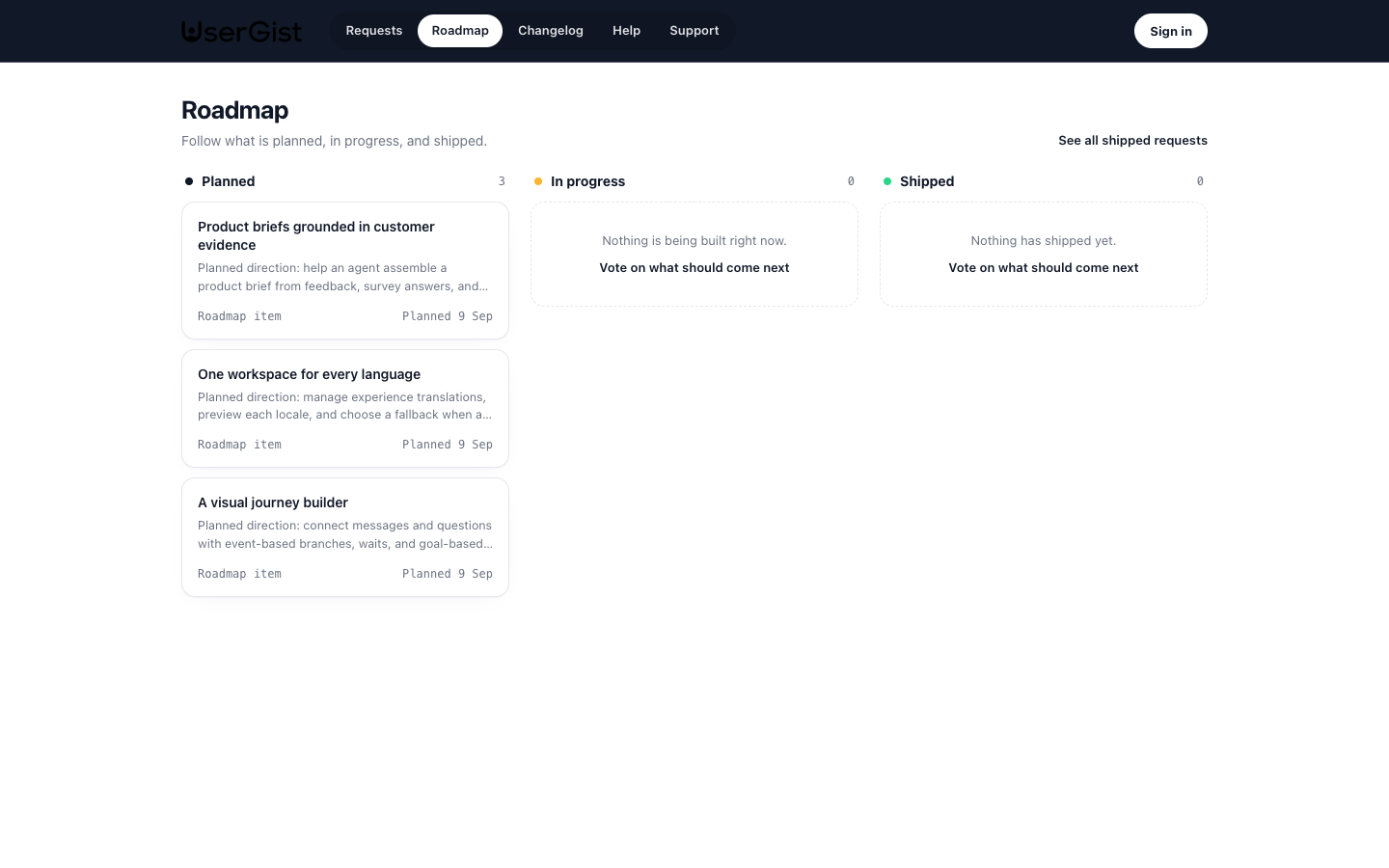
Use the roadmap to show what is planned, in progress, and shipped. It combines customer requests in these statuses with separate team-created items that describe the work your team is building.
Requests and team items
A request is a customer idea with votes, a discussion, and its own status. A team item describes planned work and can link several requests, or stand on its own. Linking requests does not merge them or combine their votes.
Open Customer Portal → Roadmap. The board has three columns: Planned, In progress, and Shipped. Cards identify whether they are a Request or Team item, and whether they are on the portal. Under-review and declined requests remain in Requests rather than these columns.
Create an item
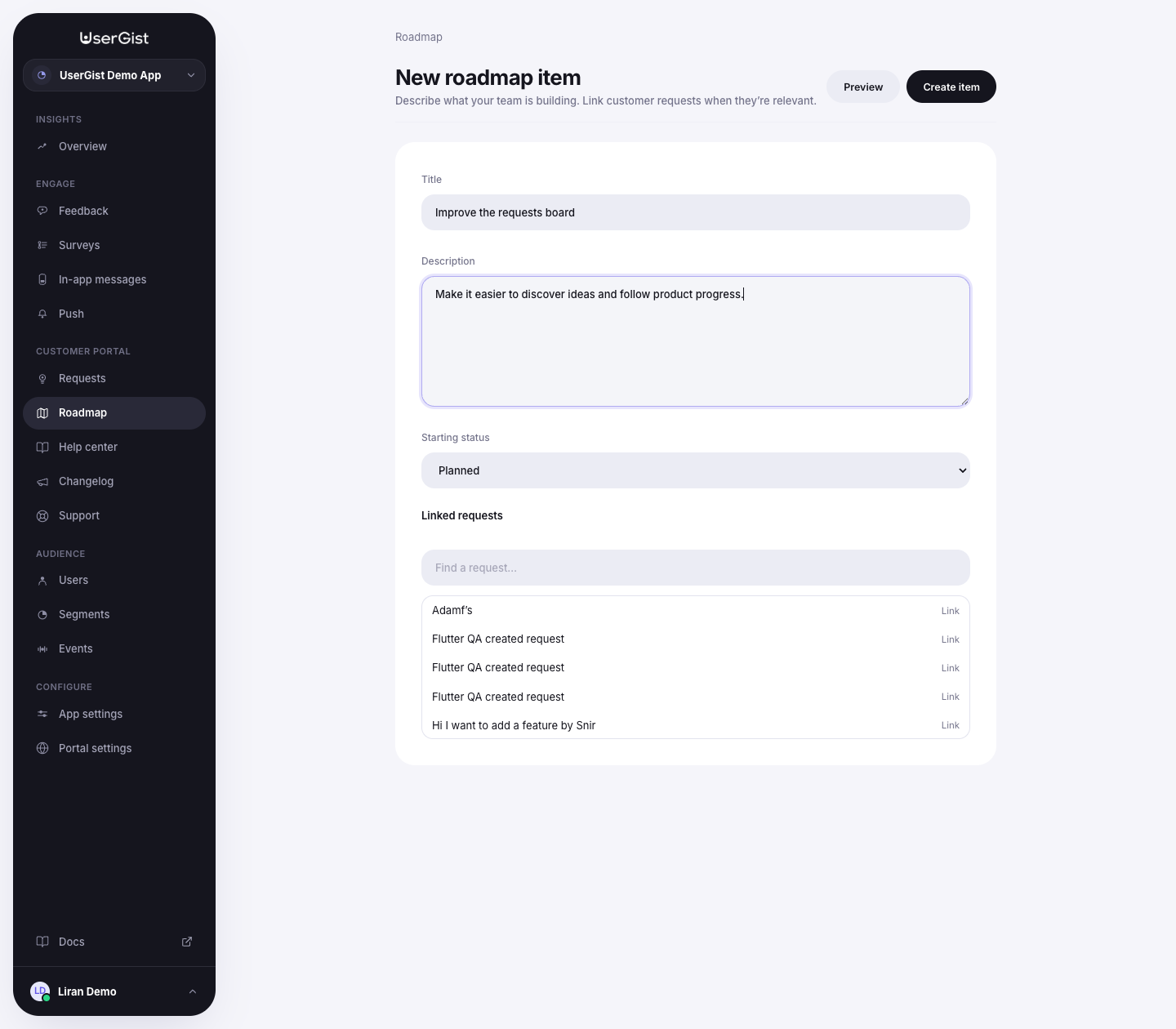
- Choose New roadmap item.
- Add a title and description, and choose a starting status.
- Use Linked requests to find the relevant customer ideas in this app.
- Choose Create item. The new item starts as a draft.
- Review Preview, then choose Publish item when ready.
Team item titles allow up to 120 characters and descriptions up to 1,500. You can link up to 100 distinct requests from the same app.
Publication requires a published company portal, an included app, and available portal content. A request card has its own portal visibility, managed in Requests; publishing a team item does not publish its linked requests.
On the public roadmap, requests linked to a published team item are represented through that item rather than duplicated as standalone cards. Private linked requests stay private.
Change progress
Open a team item, save any edits, choose the new status, and select Review status change. Review the linked requests and choose which ones should move with the item.
Only selected requests change status. Hidden requests cannot be selected, and requests already at the target status need no update. Request visibility stays unchanged. Existing request notification rules queue in-app instructions for eligible SDK followers of the requests that move; automatic native push is not implemented here.
Saving the title, description, or links of a published team item updates its live portal content. Help articles and changelog entries instead require a separate Publish changes action.
Archive or unpublish
Unpublish removes a team item from the public roadmap without changing its linked requests' visibility. Archive removes it from the active board and portal. Enable Show archived items to find it, then choose Restore as draft if you need it again.
Connect shipped work to release notes
For a shipped team item, choose Write a changelog. This creates a private release-note draft with the item's title and a link back to it. Write the update, preview it, and publish it separately. Shipping an item does not automatically publish a release note or send an Engage campaign.