
Create your first app
An app is the unit that owns your users, events, write keys, credentials, and campaigns. This page walks through choosing its platforms, copying the write key safely, and deciding which builds should share data.
An app also owns its Customer Portal requests, roadmap, help articles, release notes, and support conversations. If you are starting with the hosted portal, you can create an app from Portal settings and connect its SDK later. Including an app in the company portal does not publish all its content.
Decide what belongs together
Platform selection does not make userGist detect or inject an SDK. It controls which platform-specific tabs appear on the SDK setup page. The developer still installs the matching public package in the host application.
Use one userGist app for platform builds that are the same product and environment when you want a combined audience and campaigns. Use separate apps for strict isolation. Most teams run at least:
Acme Production— real users, real events, real push.Acme Staging— your QA build, internal users only.
Reasons:
- Write keys are per app. Staging never sends production events.
- Push credentials and provider settings are per app—staging and production can use isolated APNs/FCM configurations.
- Analytics stay clean — your CSAT chart doesn't include the QA team's test responses.
You can split platforms too—for example, Acme iOS Prod and Acme Android Prod—when they need independent credentials, campaigns, write-key rotation,
or analytics. Otherwise, select both platforms on one Acme Production app.
Step-by-step
- 1
Open the app switcher
Top of the sidebar → click the workspace name → + New app.
- 2
Name the app
Pick something your team will recognise. We recommend
<Product> <Environment>, e.g.Acme Production, adding the platform only when you intend to keep it separate. - 3
Select every platform this app represents
Choose React Native, native iOS, native Android, Flutter, or multiple platforms. The dashboard uses this selection to show the correct SDK setup tabs; it does not change runtime authentication.
- 4
Copy the write key
userGist generates a client write key (
rk_live_...) and shows it once in plaintext. Copy it into the SDK configuration now; if you lose it, create or rotate one under App settings → SDK keys. - 5
Continue to SDK setup
The dashboard opens the selected platform instructions. Install the matching package, initialize it with the write key, and send a verification event.
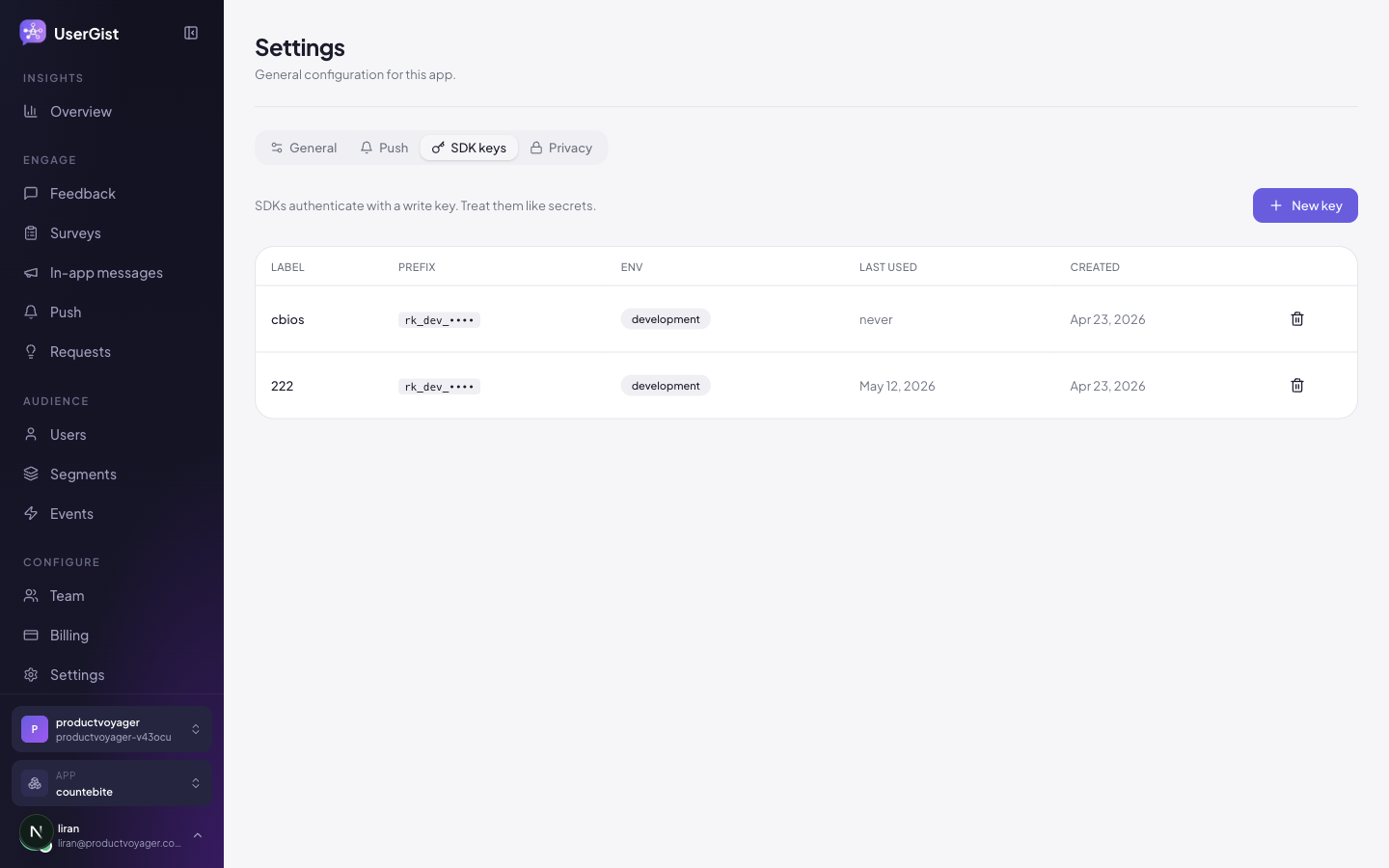
A mobile write key is expected to be extractable from a shipped application. It selects your userGist app but cannot prove a user's identity or access the dashboard. Identified users require a server-minted subject token minted by your backend. Keep write keys out of public sample code and rotate them if abused. See Admin → Write keys.
Wire the SDK
You're now ready to install an SDK and start sending events. userGist does not auto-detect the host framework: open the platform you selected and use that package manager command.
App settings
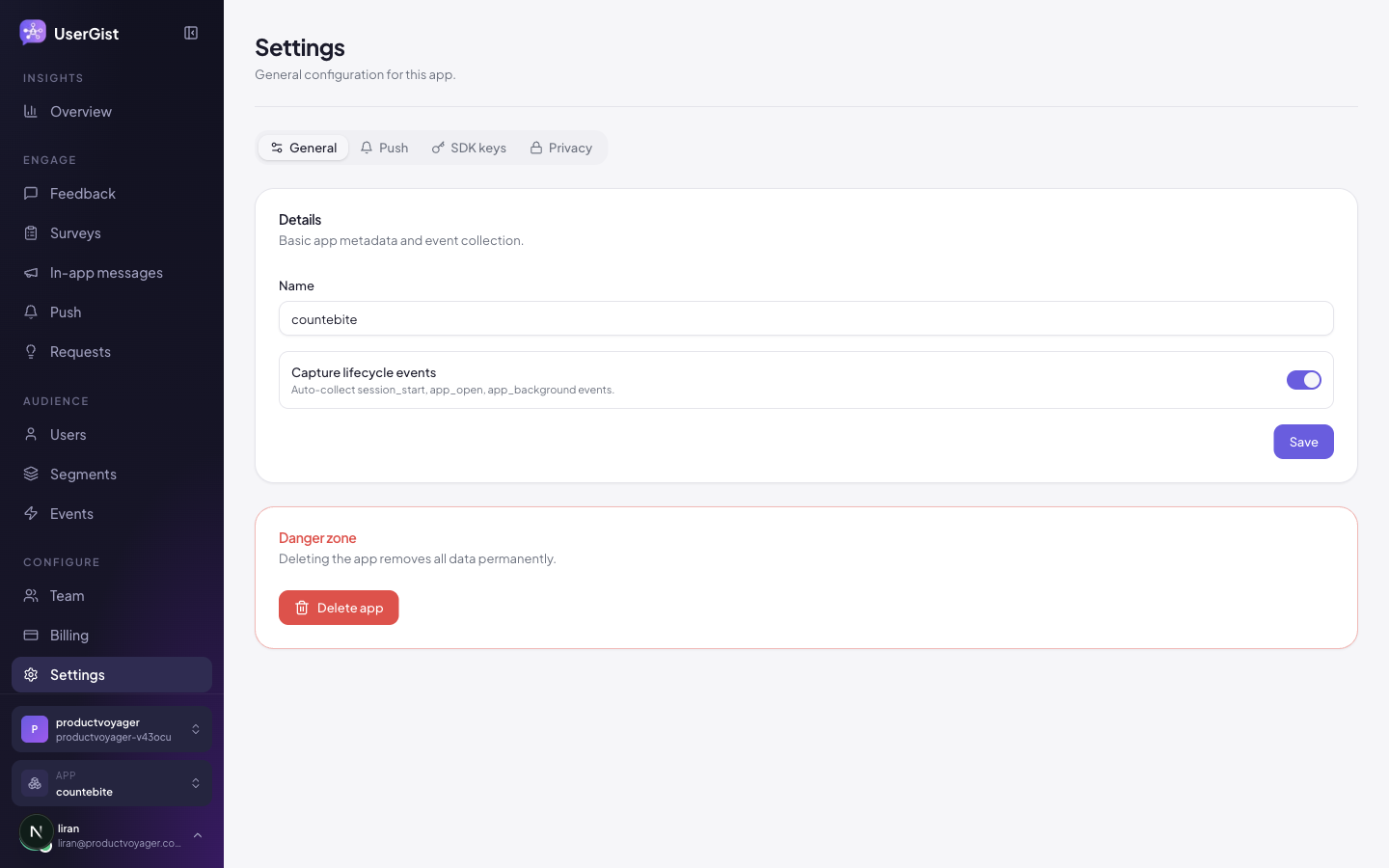
Once the app exists, App settings gives you:
- General — rename, toggle automatic lifecycle events (
app_opened,session_started), delete the app. - Brand — manage the app’s shared visual themes.
- SDK keys — create new keys, revoke old ones.
- Push — upload APNs
.p8and FCM service-account JSON. - Integrations — connect supported analytics destinations.
- Privacy — PII allow-list (e.g. permit
emailthrough ingest;phone,ssn,tax_idare blocked by default).
Lifecycle events
If you leave the lifecycle toggle on (default), userGist auto-fires:
app_installed— first launch after SDK init on a fresh device.app_opened— every cold start.session_started/session_ended— 30-min inactivity window.
These power most starter segments ("active in last 7 days", "first-week user", etc.) without you having to instrument anything yourself.
How requests find this app
The installed SDK connects to https://api.usergist.com. Its client write key
maps every request to this exact userGist app and environment. The SDK also
sends platform, SDK-version, and host-app-version metadata, but that metadata
does not choose the SDK or authenticate the request.
On first launch, the SDK creates a stable anonymous ID and opens an authenticated
anonymous subject session. After your product user signs in, your trusted
backend mints a server-minted subject token and the SDK calls identify; userGist
then links the anonymous history to the identified user without trusting an ID
supplied by the mobile app alone.